
Call transfer
A bot can transfer a call at any time during the conversation. For example, it can transfer the call to a human agent when it cannot resolve the issue, or to another bot that handles the next stage of the interaction.
The bot initiates the transfer and can include SIP headers in the transfer request that Live Hub generates.
To transfer a call using a phone number purchased from AudioCodes, contact AudioCodes.
How the transfer is made
Live Hub makes the transfer in one of two ways, depending on what the SIP server that started the call supports.
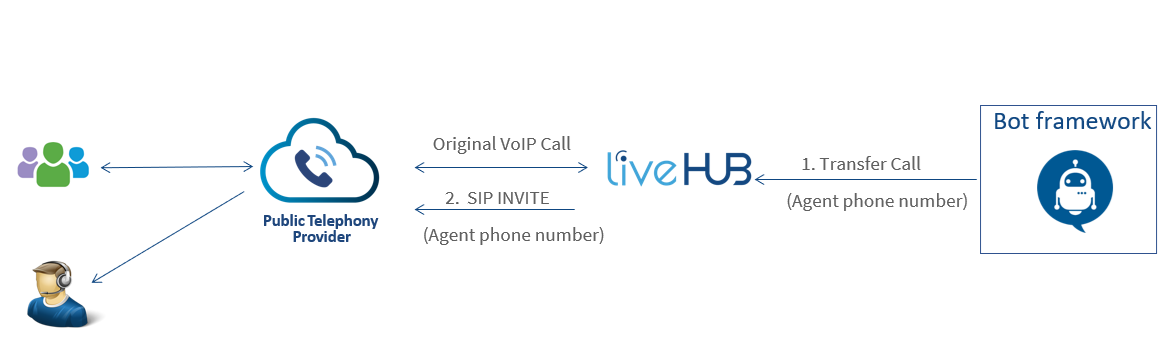
A new call, with SIP INVITE. Live Hub takes this route when the originating SIP server does not support SIP REFER, which is typical of a SIP trunk or an AudioCodes phone number. Live Hub then anchors two SIP calls, and this route needs a routing rule.
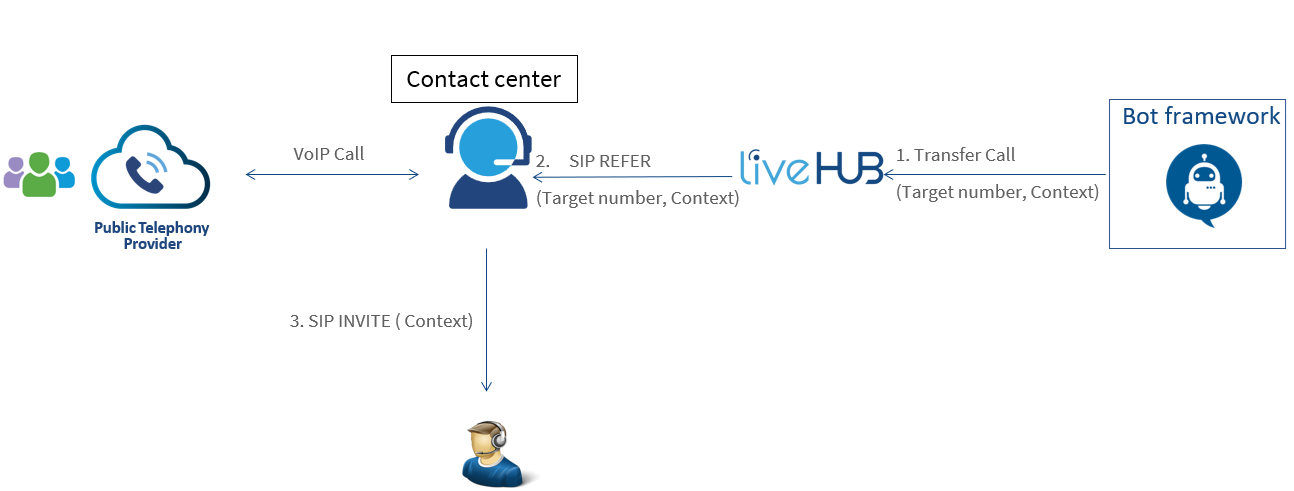
A SIP REFER, typical of contact centers. After a successful transfer, the remote SIP server drops its call with Live Hub. To take this route, set REFER as the transfer method on the SIP connection's Advanced tab. No routing rule is needed.
Live Hub converts a tel URI to a SIP URI by default: "transferTarget": "tel:+14077511320"
becomes Refer-To: <sip:+14077511320@{SBC IP address}:5060>. To keep the tel URI, the
administrator sets VAICPreserveTelURI to 1.
Trigger the transfer
How the bot triggers the transfer differs by framework, but what goes inside
activityParams does not. Select your framework:
The bot sends a transfer event with the destination in transferTarget. The name
handover means the same thing. See
HTTP mode.
{
  "activities": [
    {
      "id": "59f09f09-feb6-40d4-8852-b960502d9841",
      "timestamp": "2025-10-18T15:22:35.211Z",
      "type": "event",
      "name": "transfer",
      "activityParams": {
        "transferTarget": "tel:+123456789"
      }
    }
  ]
}The bot sends a transfer event with the destination in transferTarget. The name
handover means the same thing. See
WebSocket mode.
{
  "type": "activities",
  "activities": [
    {
      "type": "event",
      "name": "transfer",
      "activityParams": {
        "transferTarget": "tel:+123456789"
      }
    }
  ]
}The bot sends a transfer event with the parameters inside channelData. The name
handover means the same thing.
{
  "type": "event",
  "name": "transfer",
  "channelData": {
    "activityParams": {
      "transferTarget": "tel:+123456789"
    }
  }
}Live Hub supports Copilot Studio's native Transfer to agent. Store the transfer parameters as a record first, and then pass that record to the transfer.
To set up a transfer:
-
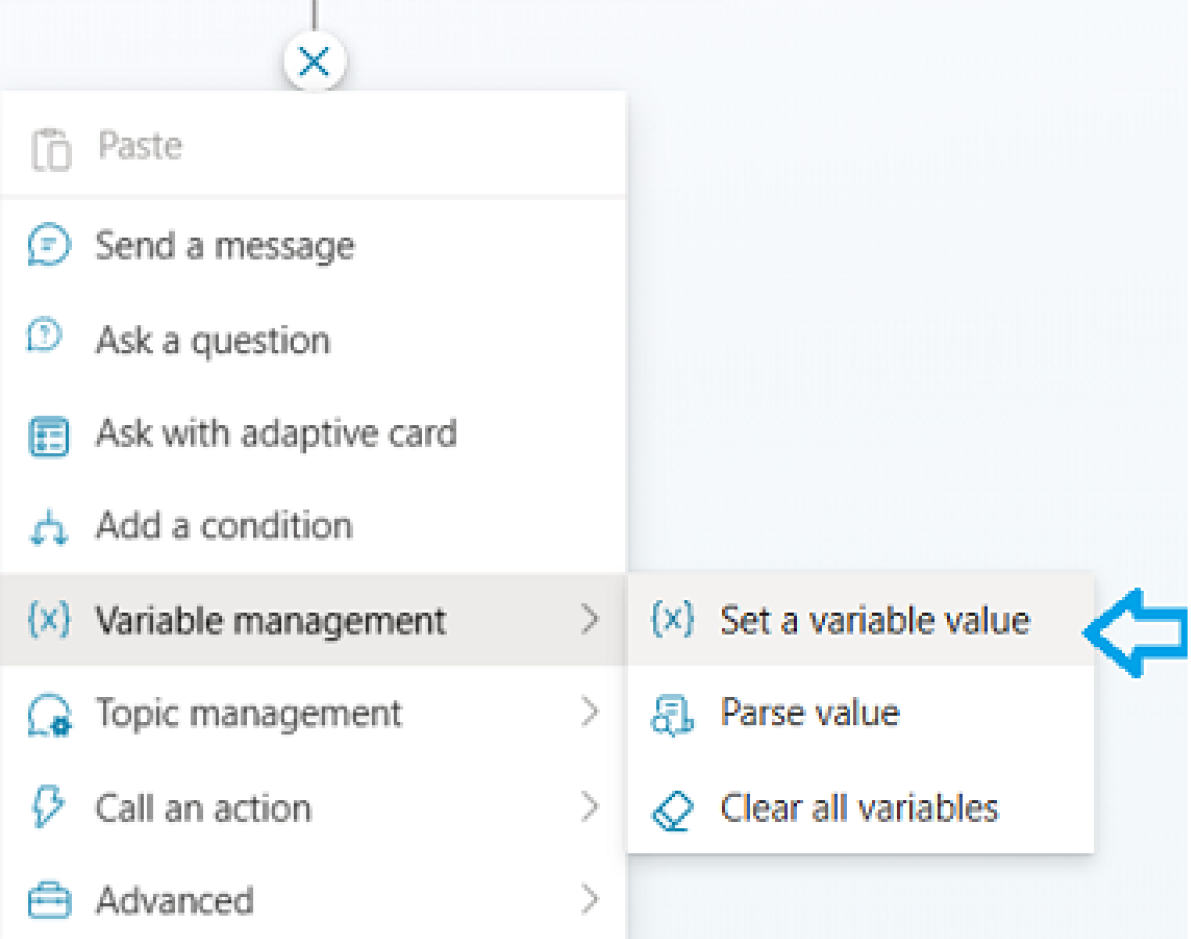
Store the transfer details as a record.
-
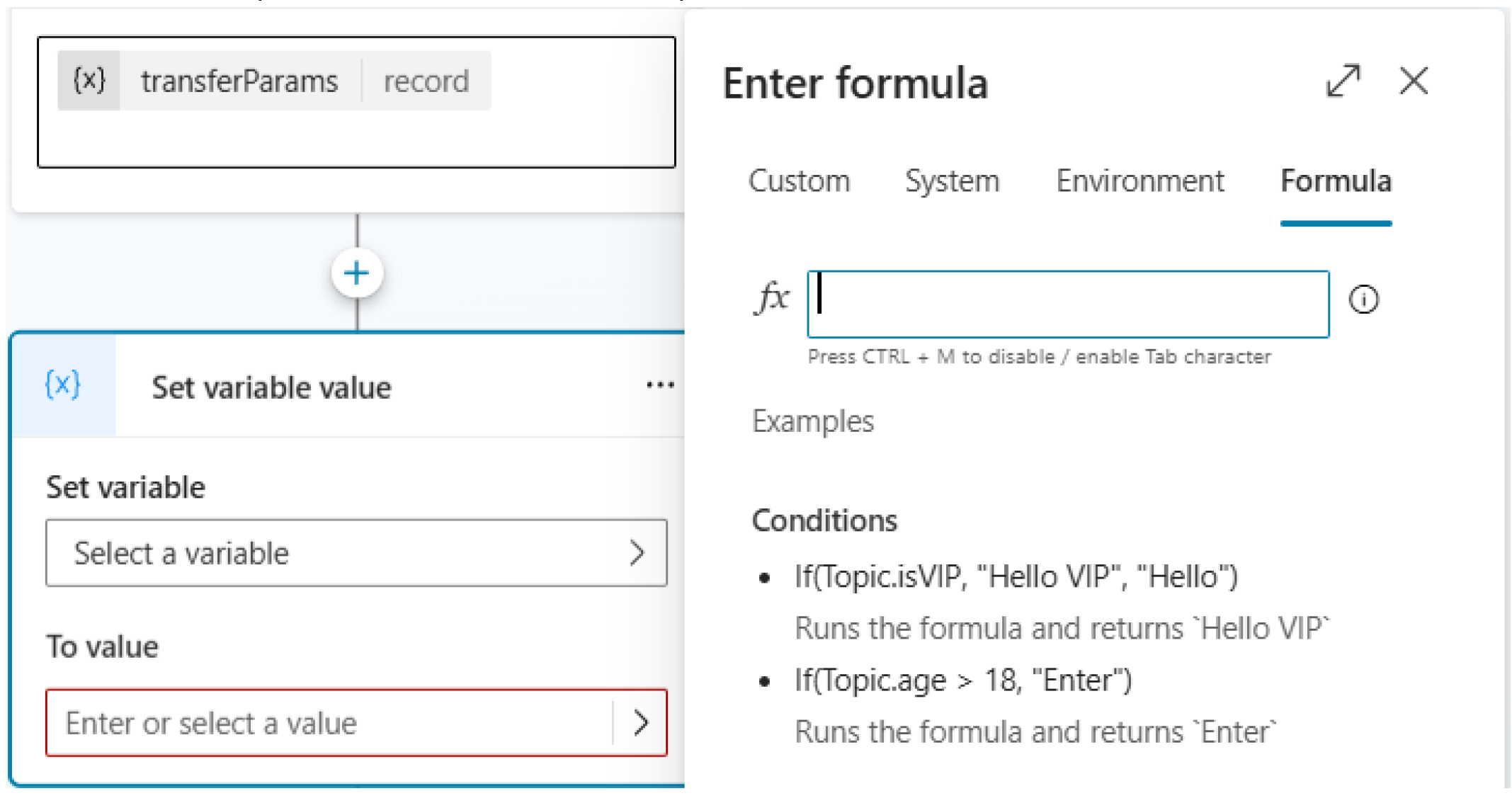
Insert the transfer parameters as a formula.
-
Give the destination in
transferTarget.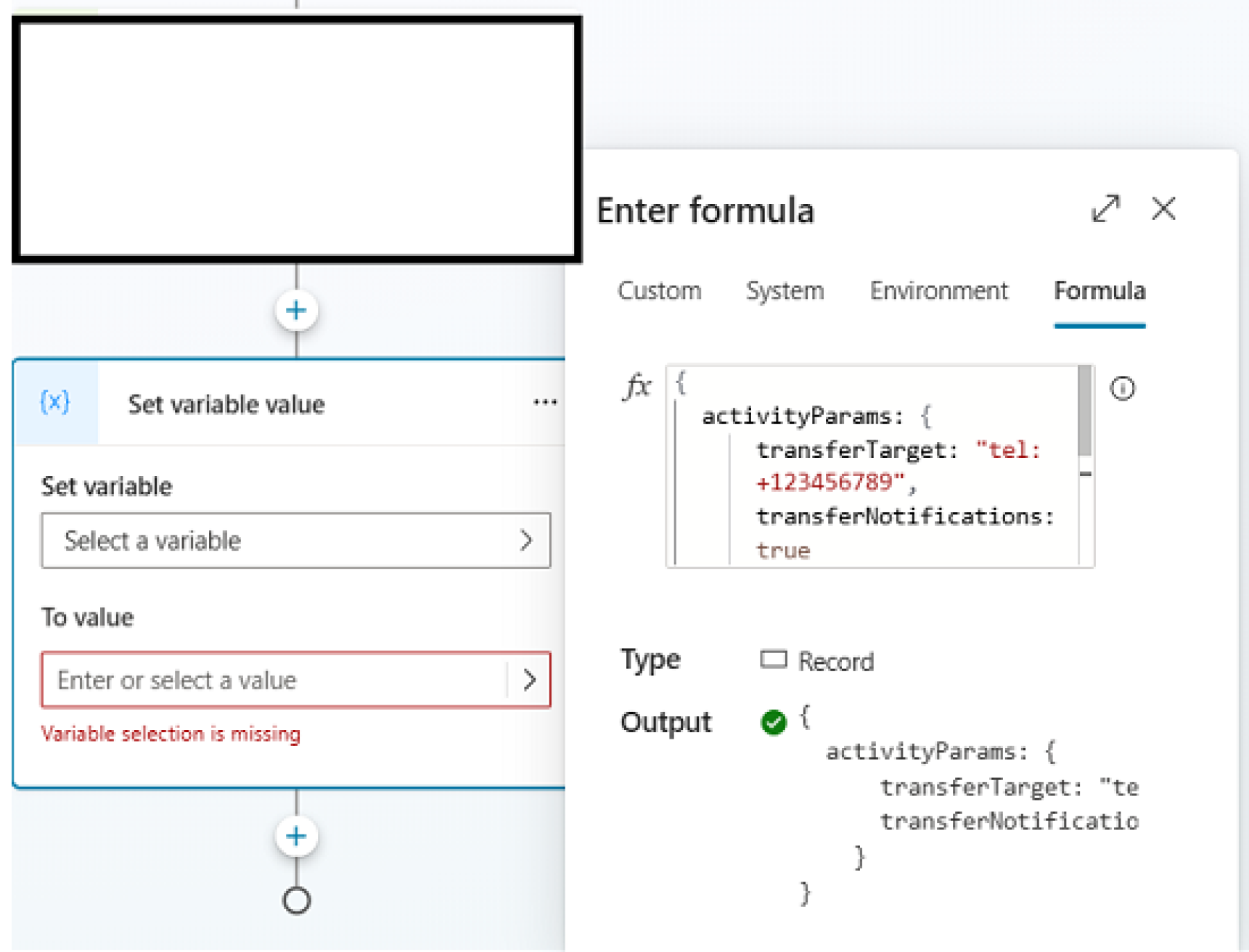
-
Under topic management, create a transfer conversation.
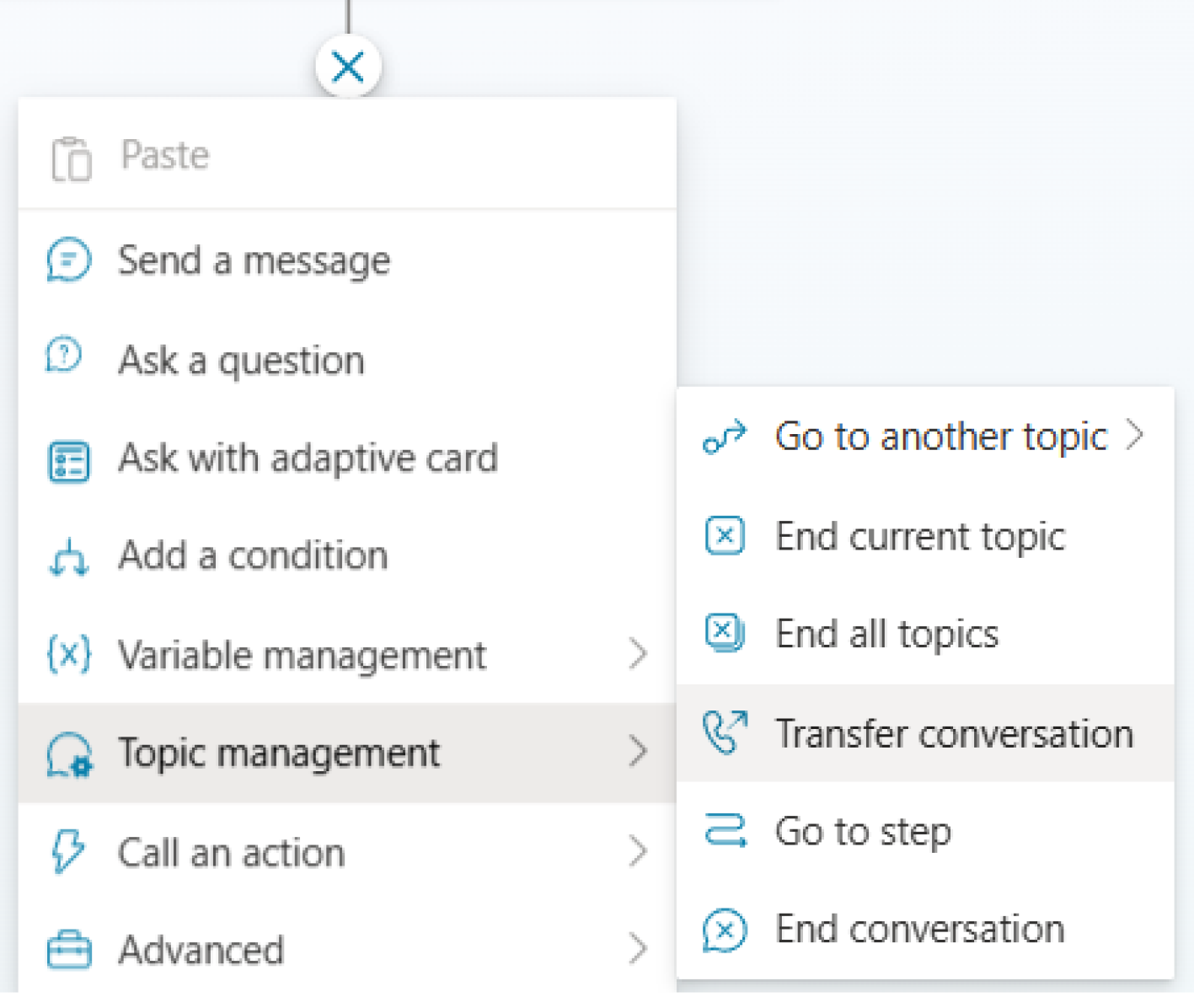
-
Add the variable in the dialog.
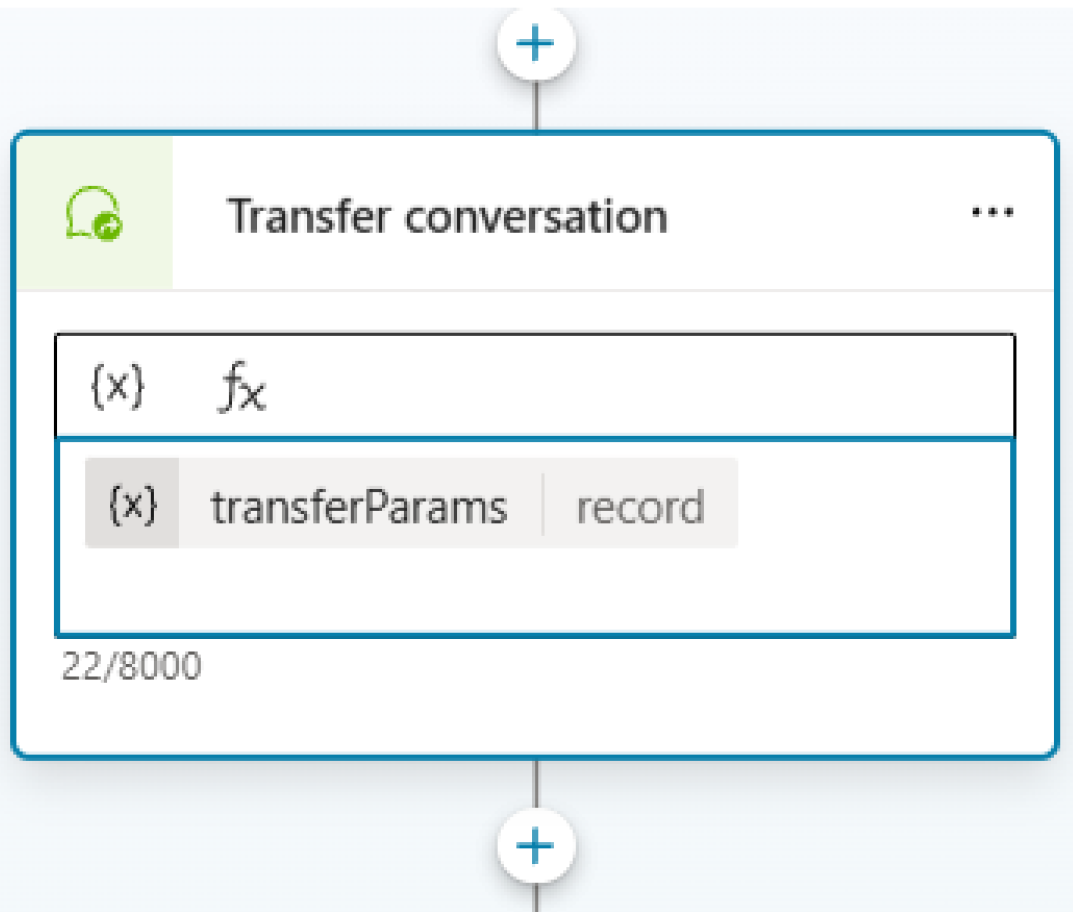
The formula takes this form:
{
  activityParams: {
    transferTarget: "tel:+123456789",
    transferNotifications: true
  }
}
To take the target from a Copilot variable, remove the quotation marks and name the variable:
{
  activityParams: {
    transferTarget: Topic.variable,
    transferNotifications: true
  }
}Legacy bots also support native Transfer to agent. Select it in the topic that should transfer the call.
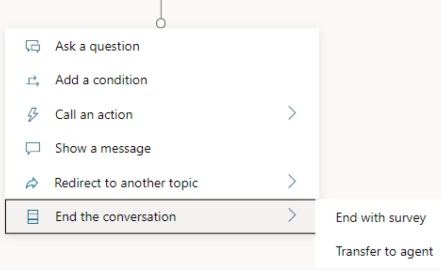
In the 'Private message to agent' text, enter the transfer parameters.
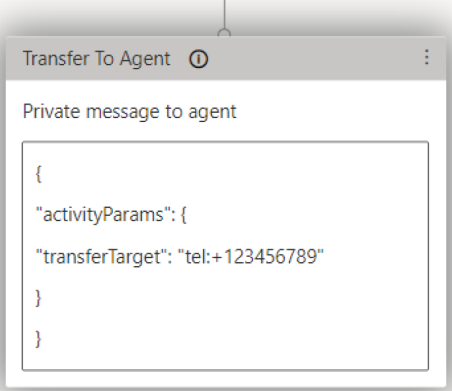
{
  "activityParams": {
    "transferTarget": "tel:+123456789"
  }
}The bot triggers the transfer with a Live agent handoff fulfillment, configured in the Dialogflow CX console.
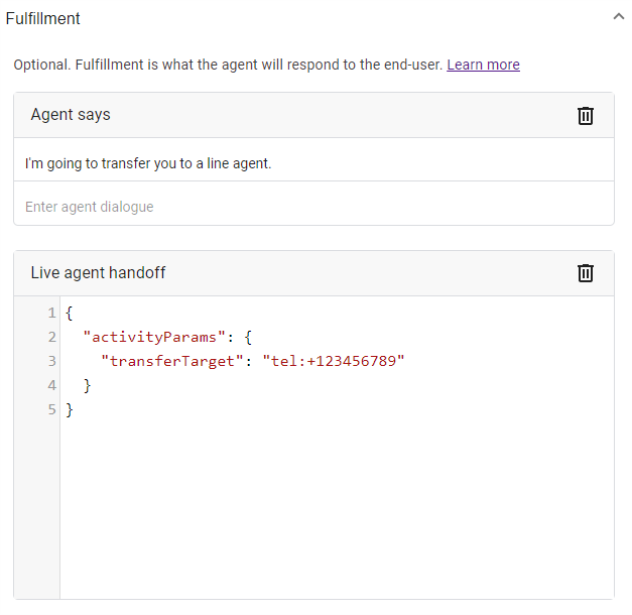
The fulfillment content carries the parameters:
{
  "activityParams": {
    "transferTarget": "tel:+123456789"
  }
}
Alternatively, add a Custom Payload fulfillment with a transfer event:
{
  "activities": [
    {
      "type": "event",
      "name": "transfer",
      "activityParams": {
        "transferTarget": "tel:+123456789"
      }
    }
  ]
}The bot sends a transfer event as a Custom Payload response. The name
handover means the same thing.
{
  "activities": [
    {
      "type": "event",
      "name": "transfer",
      "activityParams": {
        "transferTarget": "tel:+123456789"
      }
    }
  ]
}The bot triggers the transfer by adding LIVE_AGENT_HANDOFF to the params of the
end_session tool.
{
  "reason": "User asked to escalate.",
  "session_escalated": true,
  "params": {
    "LIVE_AGENT_HANDOFF": {}
  }
}
For anything beyond a bare handoff, add an activityParams field inside it:
{
  "reason": "User asked to escalate.",
  "session_escalated": true,
  "params": {
    "LIVE_AGENT_HANDOFF": {
      "activityParams": {
        "transferTarget": "sip:+123456789"
      }
    }
  }
}The bot sends a custom payload alongside the text going to the caller.
{
  "type": "event",
  "name": "transfer",
  "activityParams": {
    "transferTarget": "tel:+123456789"
  }
}
Event parameters
These parameters go inside activityParams:
| Parameter | Type | Description |
|---|---|---|
transferTarget
|
string | Where to transfer the call. A SIP URI per RFC 3261, such as sip:+14155550100@example.com;user=phone or sip:alice@example.com, or a tel URI per RFC 3966, tel:+14155550100. |
handoverReason
|
string | Why the call was transferred, in words. Appears on the call's CDR. |
transferSipHeaders
|
array | SIP headers to send to the transferee. See SIP headers. |
transferReferredByURL
|
string | The party that initiated the referral. Live Hub adds a SIP Referred-By header to the outgoing INVITE or the forwarded REFER. |
transferNotifications
|
boolean | Tells the bot how each transfer attempt turned out. Default false. See Handle a failed transfer. |
transferNotificationsHangupMS
|
number | Grace period in milliseconds before the call is disconnected after a successful transfer, 0 to 10000. Default 5000. Only applies with transferNotifications on. |
SIP headers
transferSipHeaders carries data into the SIP message Live Hub generates. It is an
array of objects, each with a name and a value. The array takes up to 100 headers
and 12,000 characters in total.
Where the headers land depends on how the transfer is made. In a SIP INVITE, Live Hub adds each one as a header:
X-My-Header: my_valueIn a SIP REFER, Live Hub puts each one inside the URI of the Refer-To header:
Refer-To: <sip:john@host.com?X-My-Header=my_value>These examples add X-My-Header: my_value from the bot:
{
  "activities": [
    {
      "id": "59f09f09-feb6-40d4-8852-b960502d9841",
      "timestamp": "2025-10-18T15:22:35.211Z",
      "type": "event",
      "name": "transfer",
      "activityParams": {
        "transferTarget": "sip:john@host.com",
        "transferSipHeaders": [
          { "name": "X-My-Header", "value": "my_value" }
        ]
      }
    }
  ]
}{
"type": "activities",
"activities": [
{
"type": "event",
"name": "transfer",
"activityParams": {
"transferTarget": "sip:john@host.com",
"transferSipHeaders": [
{ "name": "X-My-Header", "value": "my_value" }
]
}
}
]
}{
"type": "event",
"name": "transfer",
"channelData": {
"activityParams": {
"transferTarget": "sip:john@host.com",
"transferSipHeaders": [
{ "name": "X-My-Header", "value": "my_value" }
]
}
}
}{
"activityParams": {
"transferTarget": "sip:john@host.com",
"transferSipHeaders": [
{ "name": "X-My-Header", "value": "my_value" }
]
}
}{
"activityParams": {
"transferTarget": "sip:john@host.com",
"transferSipHeaders": [
{ "name": "X-My-Header", "value": "my_value" }
]
}
}The fulfillment content carries the headers:
{
  "activityParams": {
    "transferTarget": "sip:john@host.com",
    "transferSipHeaders": [
      { "name": "X-My-Header", "value": "my_value" }
    ]
  }
}{
"activities": [
{
  "type": "event",
  "name": "transfer",
  "activityParams": {
    "transferTarget": "sip:john@host.com",
    "transferSipHeaders": [
      { "name": "X-My-Header", "value": "my_value" }
    ]
  }
}
]
}{
"reason": "User asked to escalate.",
"session_escalated": true,
"params": {
"LIVE_AGENT_HANDOFF": {
"activityParams": {
"transferTarget": "sip:john@host.com",
"transferSipHeaders": [
{ "name": "X-My-Header", "value": "my_value" }
]
}
}
}
}{
"type": "event",
"name": "transfer",
"activityParams": {
"transferTarget": "sip:john@host.com",
"transferSipHeaders": [
{ "name": "X-My-Header", "value": "my_value" }
]
}
}Handle a failed transfer
By default, Live Hub disconnects the bot as soon as it performs the transfer, whether or not the transfer worked.
Set transferNotifications to true, and Live Hub tells the bot how each attempt
turned out by sending a transferStatus event after the transfer:
- The transfer succeeded — Live Hub disconnects the bot after the notification.
transferNotificationsHangupMSgives the bot a grace period first, in which it can send metadata or anything else it needs to. - The transfer failed — the call with the bot carries on, and the bot decides what to do next: play a prompt, try a different target, or keep talking.
These examples keep the bot on the call when a transfer fails:
{
  "activities": [
    {
      "id": "59f09f09-feb6-40d4-8852-b960502d9841",
      "timestamp": "2025-10-18T15:22:35.211Z",
      "type": "event",
      "name": "transfer",
      "activityParams": {
        "transferTarget": "sip:john@host.com",
        "transferNotifications": true
      }
    }
  ]
}{
"type": "activities",
"activities": [
{
  "type": "event",
  "name": "transfer",
  "activityParams": {
    "transferTarget": "sip:john@host.com",
    "transferNotifications": true
  }
}
]
}{
"type": "event",
"name": "transfer",
"channelData": {
"activityParams": {
"transferTarget": "sip:john@host.com",
"transferNotifications": true
}
}
}{
"activityParams": {
"transferTarget": "sip:john@host.com",
"transferNotifications": true
}
}{
"activityParams": {
"transferTarget": "sip:john@host.com",
"transferNotifications": true
}
}{
"activityParams": {
"transferTarget": "sip:john@host.com",
"transferNotifications": true
}
}{
"activities": [
{
"type": "event",
"name": "transfer",
"activityParams": {
"transferTarget": "sip:john@host.com",
"transferNotifications": true
}
}
]
}{
"reason": "User asked to escalate.",
"session_escalated": true,
"params": {
"LIVE_AGENT_HANDOFF": {
"activityParams": {
"transferTarget": "sip:john@host.com",
"transferNotifications": true
}
}
}
}{
"type": "event",
"name": "transfer",
"activityParams": {
"transferTarget": "sip:john@host.com",
"transferNotifications": true
}
}Set the transfer target number
The target can come from the bot, in transferTarget, or from the bot connection. If
both are set, the value from the bot takes precedence.
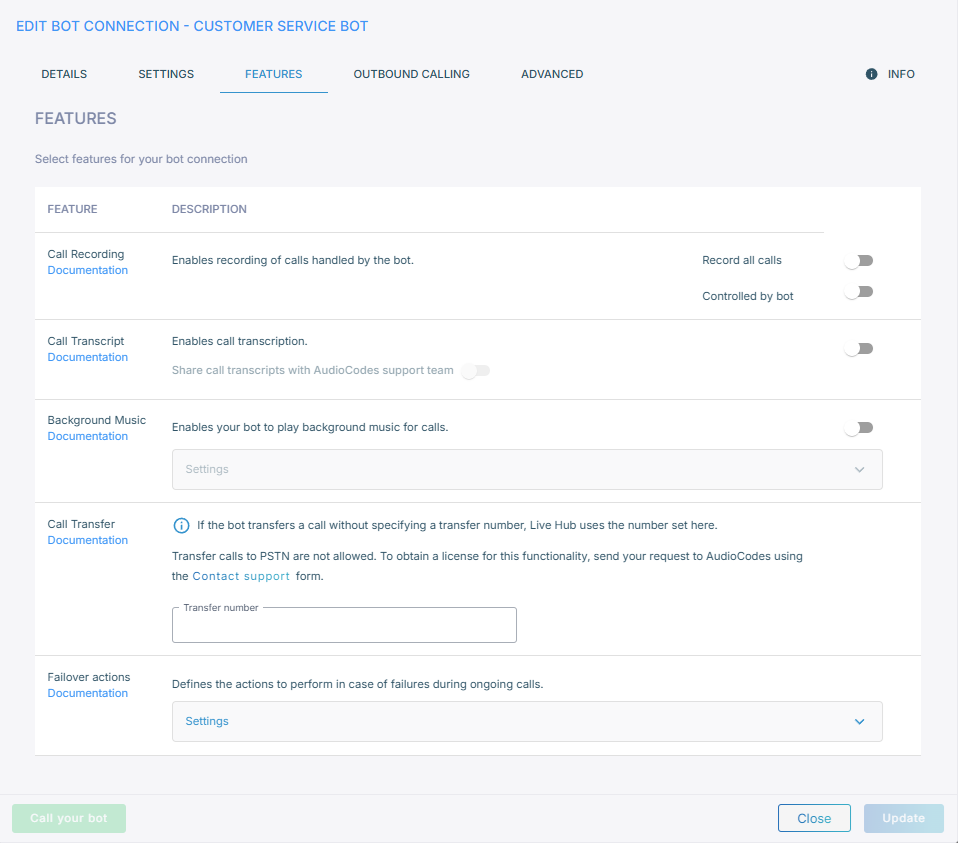
To set the target number on the bot connection:
- In the Navigation pane, select Bot connections.
- On the bot connection, click Edit, and then select the Features tab.
- Under Call Transfer, in the 'Transfer number' field, enter the number.
Create a routing rule
A routing rule is needed only when the transfer goes out as a new call over SIP INVITE. A SIP connection that supports SIP REFER needs no rule: Live Hub forwards the request as a REFER.
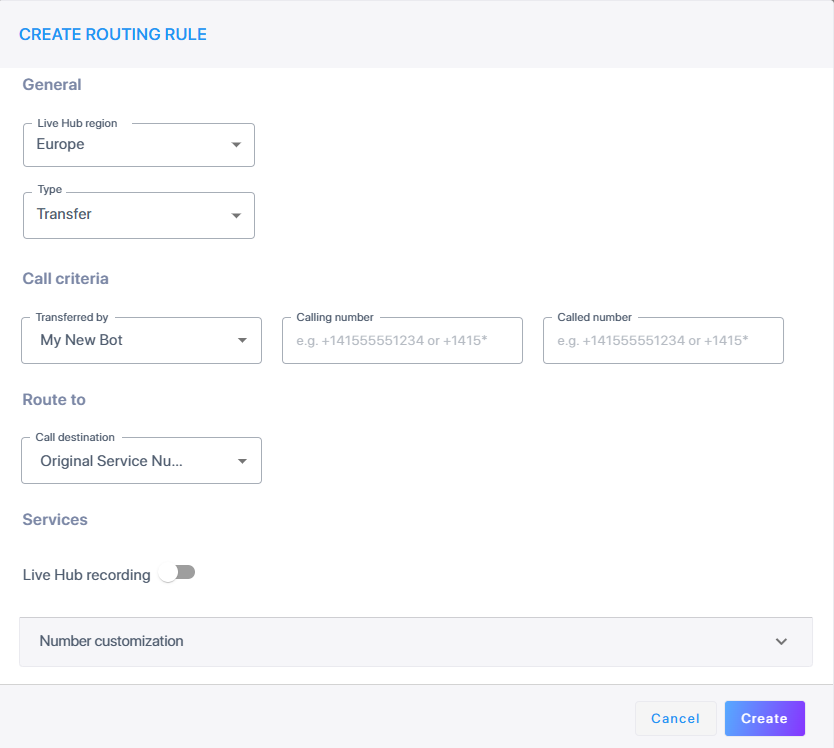
To create the routing rule:
- In the Navigation pane, select Routing, and then select the Routing Rules tab.
- Click Add new routing rule.
- Under General, from the 'Type' drop-down list, select Transfer.
- Under Call criteria, from the 'Transferred by' drop-down list, select the bot that initiates the transfer.
- Under Route to, from the 'Call destination' drop-down list, select the phone number to transfer from, or the SIP connection to route through.
Target numbers must be in E.164 format, for example +9725211111.
For everything else a rule can do, see Routing rules.
View transferred calls
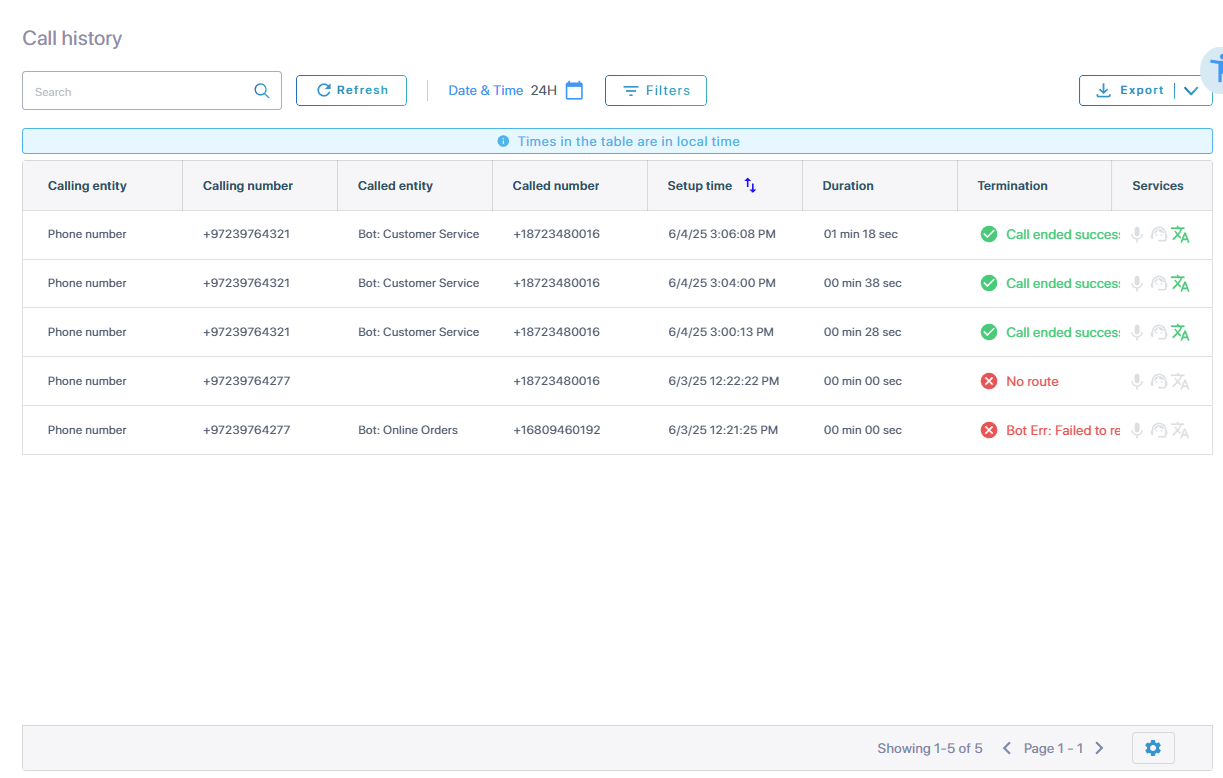
A transferred call appears in call history as two records, one incoming and one outgoing.
To see both halves of a transferred call:
-
In the Navigation pane, select Call history.
-
Select the call, and then click Search for related call records.
Where the call was part of a transfer, Live Hub shows the incoming and outgoing records together.